CrazyGLCrazyGLHomeExploreGitHubBrowse heroesLoading hero…← Back to gallery@crazygl/debugging-xray-hero

Debugging X-Ray

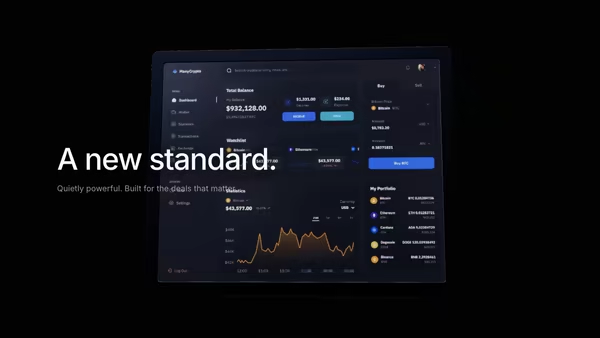
A polished product screenshot scanned by an animated x-ray band that reveals the underlying component structure as glowing devtools-style bboxes and accessibility outlines. Drag the pointer, or let it auto-sweep — exactly the feeling of opening the inspector on production.

ReactWebGL3DImageInteractiveFont#devtools#observability#monitoring#saas#screenshot#three#shader#reveal#x-ray#wireframe

Usage

import DebuggingXray from '@crazygl/hero-debugging-xray-hero';

export default function Hero() {
	return (
		<DebuggingXray
			heading="See every render, every leak, every layout shift."
			screenshot="https://crazygl.com/samples/screenshot-dashboard-dark.avif"
			scanMode="both"
			accentColor="#5cd5ff"
		/>
	);
}

Customise

  • Contentheading + subheading + ctaLabel/onCTAClick, two columns, or a custom node.
  • Screenshotscreenshot (PNG/JPG/WebP/AVIF) plus screenshotScale, screenshotX/Y, screenshotTilt to place it as a product card.
  • X-Ray scanscanMode (pointer / auto / both), scanSpeed, bandWidth, accentColor.
  • X-ray sourcexrayMode procedural overlay or a custom xrayImage (wireframe / blueprint, cover-fit aligned).
  • OverlayoverlayStyle (bboxes / heatmap / both) and overlayDensity.
  • StageparallaxStrength, bgTop/bgBottom, transparentBackground.

The screenshot reads best with visible structure — dashboards, IDEs and admin UIs, whose cards, sidebars and tables give the bounding boxes real structure to discover.

Best for

  • Observability and monitoring platforms (paint timing, Core Web Vitals, RUM).
  • Devtools, inspector and frontend-performance products.
  • Accessibility testing suites and engineering dashboards.
  • AI-for-engineers pages where "see inside your app" is the pitch.
01 · Install the package

One command, zero config.

npm install @crazygl/hero-debugging-xray-hero
02 · Render the component

Import once, drop it in.

The component takes the same props you see in the live customizer on the right — every default ships poster-quality.

hero.tsx
import DebuggingXRay from '@crazygl/hero-debugging-xray-hero';

export default function Landing() {
  return (
    <DebuggingXRay />
  );
}
03 · Use it in a page

SSR-safe by default.

The wrapper renders static HTML on the server and only initialises the canvas after hydration, so search engines see your copy.

page.tsx
// app/page.tsx — works in SSR-first frameworks (Next, Remix, Astro, etc.)
'use client';

import DebuggingXRay from '@crazygl/hero-debugging-xray-hero';

export default function Page() {
  return (
    <section>
      <DebuggingXRay
        heading="Say hi."
        subheading="Your new hero."
      />
      <article>
        <h2>Welcome</h2>
        <p>Your content keeps its own voice below the hero.</p>
      </article>
    </section>
  );
}
You might also like

Similar heroes

Pixel to 3D Reveal

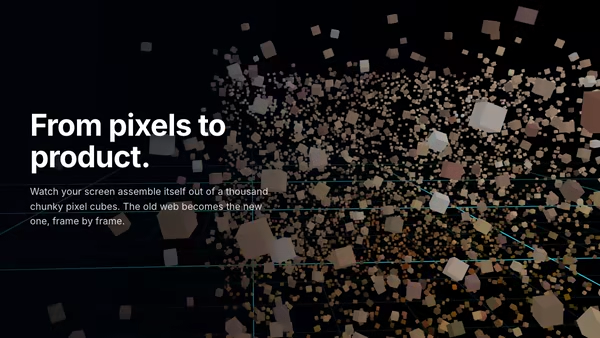
An image is sampled into a cloud of chunky pixel cubes scattered through 3D space. They fly to their home positions and refine from low-res chunks to crisp pixels — a pixel mosaic that assembles itself in front of a glowing grid floor. Three.js InstancedMesh, image-as-particle-source.

Floating Dashboard With Light Beam Reveal

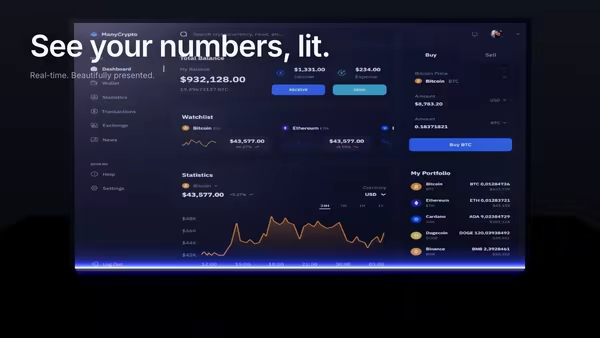
Your product dashboard, tilted in 3D space, scanned into existence by a soft blue-purple light beam. A glowing uplight underneath and a subtle floor reflection complete the look.

Black Glass Product Reveal

An almost-black canvas. A slow horizontal light sweeps left to right, revealing a glossy product screenshot inside a ceramic black-glass frame. Cinematic reveal for luxury SaaS, fintech, and premium B2B tools.

Cyber Terminal

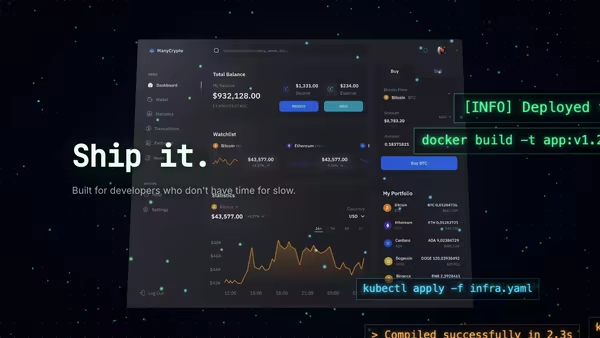
A terminal/code-editor screenshot floats at the centre, surrounded by drifting command fragments, glowing syntax particles and a pointer-driven matrix-green cursor trail.

Command Center Stage

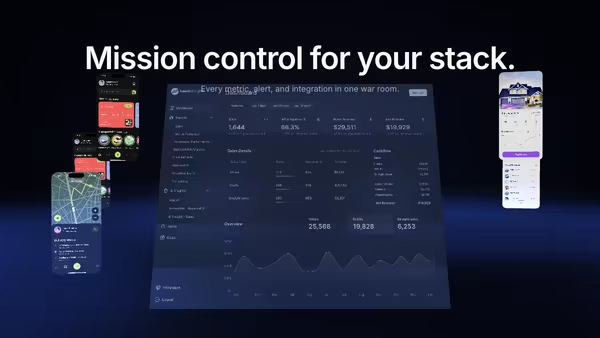
Your product UI floats as a giant screen at the centre of a dark 3D command room, smaller procedural panels orbit around it, and volumetric spotlights sweep through floor fog while a slow camera dolly breathes life into the scene.

Notification Storm

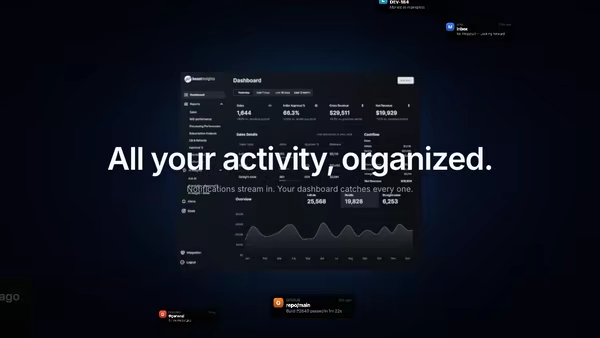
Tiny notification, message, alert and success cards stream from deep space toward a tilted product dashboard, curving inward under a magnetic pull and brightening on arrival. Hover anywhere to slow the storm to a crawl.
Live customizer

Debugging X-Ray

Screenshot (PNG/JPG/WebP/AVIF)The product screenshot the x-ray scans across. Dashboards, IDEs and admin UIs look best — the more visible structure, the better the reveal.Screenshot size1.28Scale of the screenshot plane. 1.0 fits the smaller axis; 1.05 pushes it slightly larger for a confident hero presence.Horizontal position1.5worldShift the screenshot left or right so the heading can sit opposite. 0 = centred.Vertical position0worldVertical offset of the screenshot.Screen tilt6.5°Tilt the screenshot toward (-) or away from (+) the camera. Tiny tilts read as 'product card' rather than 'flat banner'.Scan modeHow the x-ray band moves across the screenshot. Both mode lets it auto-sweep while idle, then jumps to follow your pointer when you move.Scan band width0.32Width of the reveal band as a fraction of the screenshot width. 0.25–0.4 reads as 'a tool scanning'; >0.7 reveals the whole image at once.Accent colourTint of the x-ray overlay (devtools blue, cyan, magenta, lime — pick the one that reads against your screenshot).X-ray sourceWhat gets revealed under the scan band. Procedural draws devtools-style bboxes + heatmap in-shader (no extra asset needed). Image swaps that for a second image you provide — a wireframe, blueprint, code-tree screenshot, schematic — perfectly aligned under the polished screenshot.Overlay styleBounding boxes are devtools-style outlines; the heatmap glows brighter where the underlying UI region is busier (luminance-driven). Both layered together reads as 'profiler + inspector at once'.Overlay density0.6Density of the procedural bounding-box grid. 0.4–0.7 reads as 'detailed but legible'; pushing higher fills the band with tighter nested boxes.Pointer parallax0.45How much the camera drifts with the pointer. 0 = locked; 0.5 = subtle product-shot parallax; 1.0 = playful.Background (top)Top of the radial backdrop behind the screenshot.Background (bottom)Bottom of the radial backdrop.Transparent backgroundDrop the backdrop so the hero composes onto a page section below it.Heading FontInteractivityWhich input drives the hero — try Scroll if you want the page to drive motion.
CrazyGL · crazygl.comProgrammable hero sections for real websites.